Equation Navigation and Settings
Physics and Chemistry contain a lot of equations. In order to make equations easier to navigate, we have leveraged MathJax which converts LaTeX syntax into both visually beautiful equations for non-visually impaired users, but also keyboard, audio, and even braille accessible equations for those with visual impairments. Physics Classroom does our best to support the following screen reader experiences:
- Apple VoiceOver
- Microsoft VoiceOver
- Chrome Read Aloud
- NVDA Screen Reader
- JAWS Screen Reader
These each have some nuance to them, so below are some tips and tricks for each. We will update this as we continue testing.
General Information
Keyboard Best Experience
While mobile accessibility has come a long way, equations often require navigating back and forth through fractions, parenthesis, variables, and more. We recommend using a keyboard when leveraging screen reader functionality for the best results. Equations should operate with normal hover over technology and provide a verbal reading of the equation, but stepping through the equation parts requires keyboard usage.
Voice Over and Equation Conflicts
Some voice over technology overwrites keys such as the up, down, left and right arrow keys during its reading mode. Additionally, it often will not easily allow you to interact with the equation to begin navigation. For this purpose, we recommend you toggle off the voice over during interactions that require keyboard navigation of the Math Jax Equation. Once enabled, Math Jax also has a built-in speech auto voicing.
Basic MathJax Keyboard Commands
When interacting with a MathJax Equation, below are some key commands:
- Tab: Use the tab key to navigate on page elements, which will allow selection of the MathJax Equation.
- Enter or Return: Use the enter or return key to enter into the Equation
- Escape or Esc: Use the Escape key or Esc key to exit the equation
- Up and Down Arrows: the Up and Down arrow keys allow you to navigate deeper into the equation parts (down) or up at a higher level (up).
- Left and Right Arrows: The Left and Right arrow keys allow you to navigate to sibling parts of the equation.
- Space Bar: When in an equation, use the space bar to bring up the MathJax configuration, then use the arrow keys to navigate the menu, and Enter/Return to toggle the setting.
- NOTE: Enter does toggle the option, but also closes the menu, so you have to hit space bar again and navigate to the next option you want to edit each time.
- You may have to turn on voice over once the menu is up so you can hear the option you are on, then turn off the voice over to restore right or left arrow usage so you can navigate right or left again.
Clear Speak Settings
MathJax has two built in speech parsers for its equations: Math Speak and Clear Speak.
Clear Speak is enabled by default and provides the best verbalization of equations. There are many settings that can be adjusted. Below are a couple we recommend you set to get the most out of your equation listening:
- Triangle Symbol (TriangleSymb): Set to Delta.
- Exponent: Ordinal Power will read exponents as "to the power of"
- Fraction: End Frac (EndFrac) or Over End Frac (OverEndFrac) declares both the start and end of the fraction, as well as the numerator/denominator or over. This will help prevent scenarios where a fraction is multiplied by a number afterwards, so you know that number is not a continuation of the denominator.
There are other settings worth checking out, but these should handle most things.
Specific Screen Reader Nuances
Windows Voice Over (Edge/Chrome)
If using native Windows 11 Voice Over is not the greatest experience, you will need to be aware of the following things:
- When navigating through the page using the Up/Down arrows, it treats Equations as a new content item in the tree, so it will read up to the equation, then you must hit the down or up arrow to read the equation, then again to go past the equation.
- It would not allow up down left right or enter keys to work, so it may require turning voice over on and off (windows + ctrl + enter) when you want to explore an equation and then tab into the equation.
- During testing, when voice over is turned off, it lost the 'position' the reader was on, which meant having to re-navigate to the section (header navigation helps) and then tabbing until the equation is found. Luckily when on an equation, turning on Voice Over will start at your position since you will be tabbed on the equation.
- As noted in the Basic MathJax Keyboard Commands, once you turn off Voice Over and go into the equation, to configure the menu hit space, but then turn Voice Over back on (windows + ctrl + enter), and use up and down to find your option. Then turn Voice over back off (windows + ctrl + enter), hit the right key, and turn it back on to find your option. Lastly turn it off and hit enter to toggle the menu setting.
Windows NVDA
NVDA, a free screen reader software for windows, is a better experience over the native Voice Over. Here's some general pointers to using it with our equations.
- We recommend using the Keyboard Browser Mode navigation, using up or down arrows to navigate through content and heading shortcuts to navigate through the page content.
- If Equations are present within content, NVDA will read up to the equation, and then you must push down (or up if going backwards) to highlight the equation. It will say "Clickable" by default (indicating you can hit the Enter key to step into the equation), and reads the equation content, then ends with the word Math. You can then hit down to read the next bit of text.
- When on the equation, you can hit enter to start navigating into the equation, using up and down, left and right arrow keys as part of MathJax's normal browsing.
- I would not enable MathJax Voice over when using NVDA as it will produce double speaking, or if you do make sure to disable NVDA speaking with the S key when entering.
- Once done, hit the escape key and you'll be brought out of the equation, and then be able to use up/down to continue on your navigation.
Sample Content With Equations
Below is a sample of some content that contains equations so you can test and configure your screen reader and get your navigation going. The below has both normal content, content with equations with them, and special equation zones.
Mass versus Weight
Many problems target your ability to distinguish between mass and weight. Mass is a quantity which is dependent upon the amount of matter present in an object; it is commonly expressed in units of kilograms. Being the amount of matter possessed by an object, the mass is independent of its location in the universe. Weight, on the other hand, is the force of gravity with which the Earth attracts an object towards itself.
Since gravitational forces vary with location, the weight of an object on the Earth's surface is different than its weight on the moon. Being a force, weight is most commonly expressed in the metric unit as Newtons. Every location in the universe is characterized by a gravitational field constant represented by the symbol \(g\) (sometimes referred to as the acceleration of gravity). Weight (or \(F_\text{grav}\)) and mass (\(m\)) are related by the equation:
\(F_\text{grav} = m \times g\)
Distance by Average Velocity
Distance of an object can be found by finding the average velocity times the time it travelled. This will help for velocities that increase or decrease at a constant rate (constant acceleration).
\(d = \frac{v_o + v_f}{2} \times t\)
Vector Components
Projectile problems in this set of problems can be divided into two types - those that are launched in a strictly horizontal direction and those that are launched at an angle to the horizontal. A horizontally launched projectile has an original velocity which is directed only horizontally; there is no vertical component to the original velocity. It is sometimes said that \(v_\text{oy} = \units{0}{\unitfrac{m}{s}}\) for such problems. (The \(v_oy\) is the y-component of the original velocity.)
A non-horizontally launched projectile (or angled-launched projectile) is a projectile that is launched at an angle to the horizontal. Such a projectile has both a horizontal and vertical component to its original velocity. The magnitudes of the horizontal and vertical components of the original velocity can be calculated from knowledge of the original velocity and the angle of launch (theta or \(θ\)) using trigonometric functions. The equations for such calculations are:
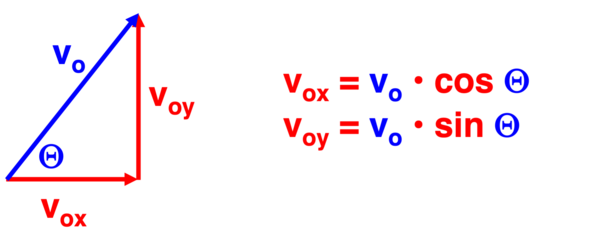
- Horizontal Component: \(v_\text{ox} = v_o \times \cos{θ}\)
- Vertical Component: \(v_\text{oy} = v_o \times \sin{θ}\)
Using the Factor-Label Method
The factor-label method was introduced in our Units and Measurement unit at The Calculator Pad. The factor-label method makes use of converting factors (a.k.a., conversion factors) to convert from one quantity to another quantity. In many courses, the factor-label method is required when doing stoichiometric calculations. And in our opinion, the factor-label method is an essential tool in the toolbox of a chemistry student who is attempting to work through a stoichiometry problem. Reliance on the use of conversion factors becomes more critical as the problems become more complex.
The factor-label method is a unit-cancellation method used to convert from a quantity in one set of units to another set of units. The units are primary; the numbers are secondary. To illustrate its use, consider the reaction
\({\eN_2} + {3\eH_2} \to {2\eN\eH_3}\)
and the task of determining the moles of \(\eN\eH_3\) produced from the reaction of \(12.9\unit{g}\) of \(\eH_2\). We know from our understanding of molar mass that \(2.016\unit{g}\) of \(\eH_2\) is equivalent to \(1.000\unit{\mole}\) of \(\eH_2\). And we know from our understanding of balanced chemical equations that \(3.000 \unit{\mole}\) of \(\eH_2\) is an equivalent amount of reactant to produce \(2.000\unit{\mole}\) of \(\eN\eH_3\). From these two bits of information, we can create the following converting factors.
\(\frac{2.016\,\unit{g}\,\eH_2}{1\,\unit{\mole}\,\eH_2}\) \(\frac{1\,\unit{\mole}\,\eH_2}{2.016\,\unit{g}\,\eH_2}\) \(\frac{2\,\unit{\mole}\,\eN\eH_3}{3\,\unit{\mole}\,\eH_2}\) \(\frac{3\,\unit{\mole}\,\eH_2}{2\,\unit{\mole}\,\eN\eH_3}\)